Review OCR Before Exporting Text or CSV
A practical review of printed text, receipt totals and table columns before you use a local OCR export.
Updated 23 October 2026
Start with a readable source
Use a clear photo or screenshot of printed text. Crop unrelated margins and choose the matching OCR language. Reflections, skewed pages and tiny characters can produce plausible but incorrect words. Run a small test before processing an important document.
Compare numbers with the original
OCR can confuse O with 0, I with 1, and a decimal separator with a speck of dust. Check dates, amounts, account references and email addresses character by character. A sentence that reads smoothly does not prove its numbers are correct.
Review receipt fields separately
Receipt-to-CSV suggests a merchant, date, tax and total, while currency remains yours to confirm. Compare every field with the receipt and distinguish subtotal, tax, tip and final amount. The reviewed fields become the CSV; changing raw OCR text does not automatically change those fields.
Check table boundaries
For a simple table, place one tab between cells and one line break between rows in the editable result. For example, Item, Qty and Price should remain three separate columns. Merged cells and decorative spacing need manual correction. The export is CSV for a spreadsheet application, not an XLSX workbook.
Open the saved file
Open the downloaded CSV and confirm its delimiter, accents, dates and leading zeros. Spreadsheet software may interpret text as dates or numbers, so choose a text column type where appropriate. Keep the source privately for comparison. OCR suggestions are not verified accounting records or a substitute for checking the original.
Keep the original file. Check the exported copy before sharing or submitting it.
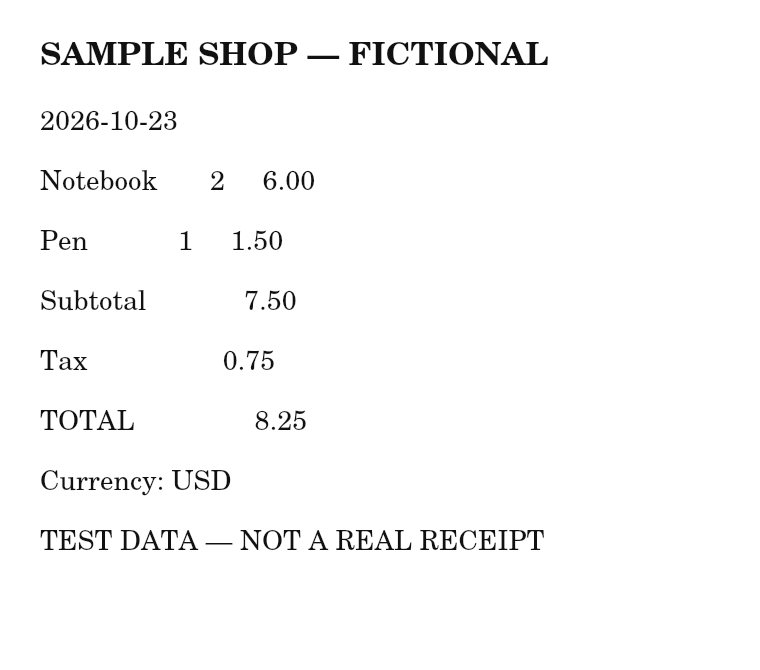
A fictional receipt you can check by hand
The sample receipt contains Notebook 6.00, Pen 1.50, subtotal 7.50, tax 0.75 and total 8.25 USD. Its date is 2026-10-23. These are manually authored expected values, not a claimed OCR result. Try recognition, compare its suggestions with the image, and correct merchant, date, currency, tax and total before preparing CSV.
The accompanying reference CSV contains the reviewed summary fields only. It does not include product rows. Open it as text first to see the header, then import it into a spreadsheet and verify that date, decimal separators and currency remain correct. The sample is fictional and must not be used as an accounting document.
 Download the original sampleDownload the manually reviewed sample CSV
How these examples were measured
The receipt image and reference CSV were authored together as fictional test data. The CSV records manually checked expected fields, not an unedited OCR export. Use it to compare your reviewed export; it does not certify extraction accuracy.