Prepare Images for Online Application Forms
A careful sequence for photos and signatures: requirements, crop, dimensions, compression and final verification.
Updated 23 October 2026Write down the actual requirements
Use the instructions from the exact application you are completing. Record the accepted format, width, height, maximum and minimum file size, background and framing rules. Check whether the values are pixels, millimeters or a ratio. Requirements can change between organizations and applications; a passport-photo preset is a sizing aid, not an official certification. Do not reuse a remembered specification from another form.
Start with a clean original
For a photo, use a sharp, evenly lit source with the required background. For a signature, use a clear scan or photograph with enough contrast to distinguish every stroke. Avoid screenshots of a screenshot, messaging-app thumbnails and unnecessary filters. Keep the source file. Editing cannot reliably restore detail that was never captured, and stretching a small portrait can make an already weak image harder to assess.
Crop before resizing
Frame the required content without cutting off important edges. Match the required aspect ratio before entering exact dimensions. If a portrait must be square, crop to 1:1 instead of squeezing a rectangular picture into a square. For signatures, remove unnecessary blank margins but leave enough room around the strokes. Preview the complete result before exporting; the crop tool permanently excludes the outside area in the downloaded copy.
Set pixels, then meet the size limit
Use the pixel resizer for the required width and height, then compress in the accepted format. If dimensions must stay fixed, switch off the compressor’s auto-resize option. For a maximum of 50 KB, aim slightly below the boundary to allow for different size calculations. If the form also has a minimum, verify both limits. Do not deliberately add meaningless data to inflate a file; create a suitable export from the original.
Verify before submitting
Open the downloaded file and inspect its dimensions, actual format and size. Check that faces, letters and signature strokes remain clear at normal viewing size. Upload that exported file rather than the original. If the portal rejects it, read the exact message before making another change. ListSite prepares files but cannot guarantee acceptance by a government, employer or other organization. Avoid sending personal documents to support unless genuinely necessary.
A fictional stroke check before a real upload
Use the fictional stroke sample rather than a real signature while learning the controls. The example changes 600 × 200 to 300 × 100 and exports JPG under 20 KB. Its 8,450-byte reference demonstrates resizing, not a universal signature specification. Copy the actual dimensions and accepted format from your own form before preparing personal files.
Check the entire curve and margins in the saved file. If a required thin mark is lost, a smaller byte count is not a success. Start again from the original and revise only settings the receiving organization allows. ListSite does not certify identity documents or authenticate a signature.
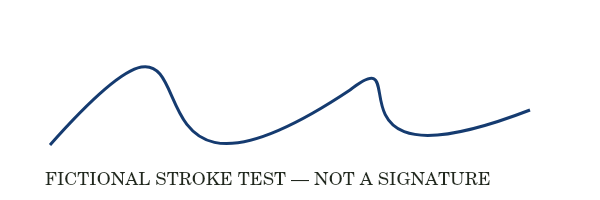
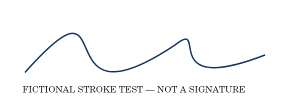
Reference run: JPG output, auto-resize off. Sizes are bytes, not rounded KB.
- Original: 15,924 B
- Export: 8,450 B · JPG · 300 × 100 px
How these examples were measured
These fictional test images were created for ListSite. Reference JPGs were produced by the same compressor code with a native Skia canvas test harness, not a browser benchmark. Sizes below describe these exact downloads. Your browser encoder and original image may produce different results. These examples do not establish OCR accuracy, AI quality or official form acceptance.
Try the tools
Found an unclear step or a mistake? Contact ListSite with the page and what needs correcting. Keep private documents out of your report.
Contact