Image File Size vs Pixel Dimensions
Understand KB, pixels and aspect ratio, and meet an upload limit without unnecessarily shrinking your image.
Updated 23 October 2026Two different measurements
Pixel dimensions describe the image grid: 1200 × 800 means 1200 columns and 800 rows. File size describes the storage needed for the encoded image. Two files with those same dimensions can have very different KB sizes because of format, detail, transparency and quality settings. A detailed tree photograph usually behaves differently from a flat-color icon. Changing the filename does not change either measurement.
KB, bytes and strict limits
ListSite target-size tools use 1024 bytes per KB. Some upload services use 1000 bytes per KB or round the displayed size. As a result, a file shown as 100 KB in one place can exceed another service’s 100 KB limit. If a file is rejected near the boundary, choose a slightly lower target such as 95 KB and check the actual downloaded file. Exact equality is usually unnecessary for a maximum-size rule.
Keep the shape before setting dimensions
Aspect ratio compares width with height. A 1200 × 800 photo has a 3:2 ratio; a 600 × 600 output is square. Resizing directly to a different ratio can stretch the subject. Crop to the intended shape first, then resize to the required dimensions. Enlarging a small source adds pixels, not authentic detail. If the source is already blurry, start from a better original instead of relying on a larger export.
Dimensions first, compression second
Suppose a form requires a 600 × 400 JPG under 100 KB. Crop to 3:2, resize to 600 × 400, and then compress that result. In the compressor, turn off auto-resize when the pixel dimensions must remain exact. A complex image may not reach a very small target at acceptable quality. If the tool reports that a target is impossible, change only settings the receiving form permits; do not silently relax its dimensions.
Check the export, not just the preview
A browser preview may be scaled to fit the screen. Download the output, open its file information and confirm width, height, format and byte size. Inspect text and important details at 100% zoom. For screen uploads, changing DPI metadata alone does not meet a pixel-dimension requirement or guarantee a smaller file. Keep the original separately and give your export a clear name so you do not accidentally submit the source.
Same pixels, different byte limits
The two reference JPGs below are both 600 × 400. The 100 KB run produced 100,220 bytes; the 95 KB run produced 93,574 bytes. The first passes a 102,400-byte maximum but exceeds a 100,000-byte maximum by 220 bytes. The second stays below both. The receiving service decides which limit applies.
Run the same original with JPG, 600 × 400 and auto-resize off; change only the target. Your browser may choose different encoded bytes. Compare fine lettering before preferring the smaller version. Lowering KB without changing pixels can still discard visual detail.
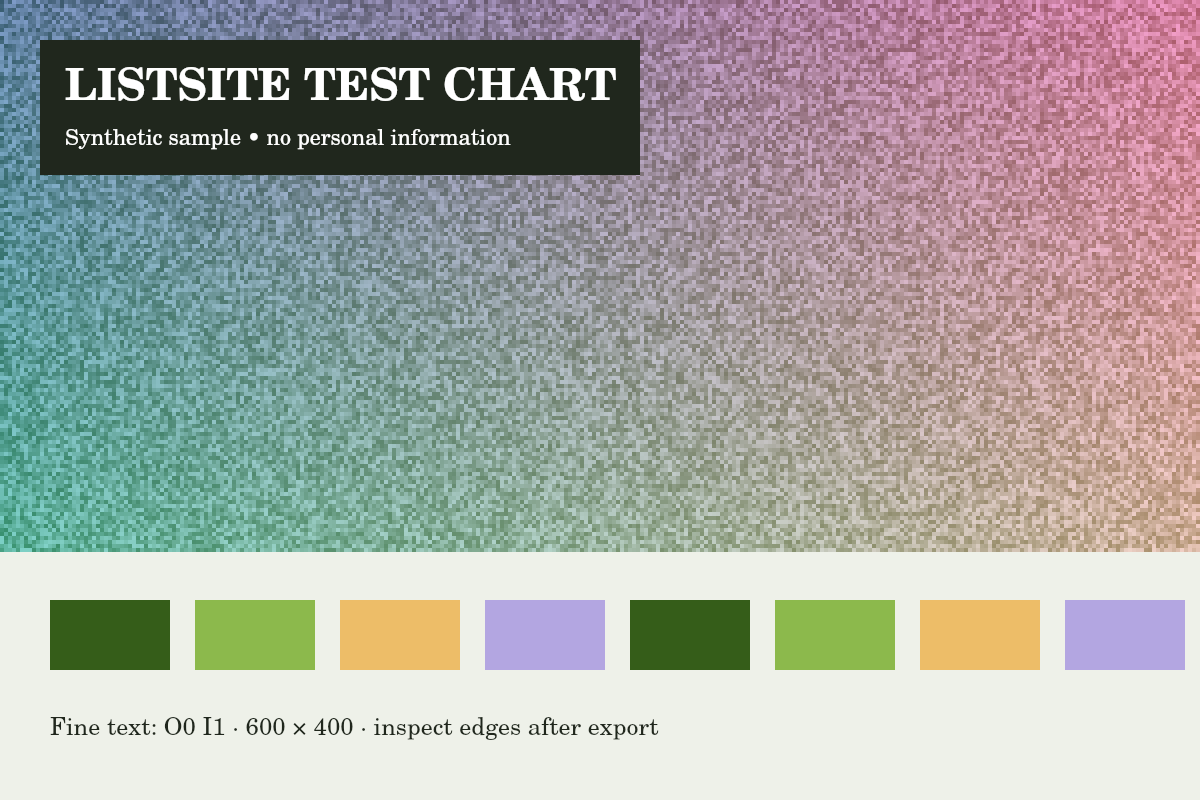
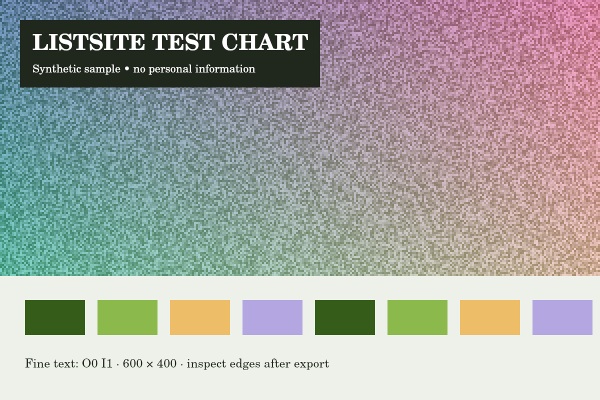
Reference run: JPG output, auto-resize off. Sizes are bytes, not rounded KB.
- Original: 151,886 B
- Export: 100,220 B · JPG · 600 × 400 px
How these examples were measured
These fictional test images were created for ListSite. Reference JPGs were produced by the same compressor code with a native Skia canvas test harness, not a browser benchmark. Sizes below describe these exact downloads. Your browser encoder and original image may produce different results. These examples do not establish OCR accuracy, AI quality or official form acceptance.
Try the tools
Found an unclear step or a mistake? Contact ListSite with the page and what needs correcting. Keep private documents out of your report.
Contact